
If you have an email address at your own domain (like you@yourcompany.com ), the best way to use it is with a proper mail app — not through Gmail’s “Send mail as” feature. Gmail’s approach looks convenient, but it quietly causes delivery problems:
- Replies carry the entire quoted conversation and images, making messages heavy — spam filters are more likely to reject them.
- Some recipients get your email while others silently don’t.
- Bounce messages blame a “misconfigured account” when that isn’t the real problem.
- Your sent items and read status don’t sync between your phone and computer.
Setting up a real mail app takes about ten minutes. This guide walks you through it with Thunderbird — free, and it works the same on Windows and Mac.
You can always change your password here .
Quick settings
Enter your website address and the settings below will update to match.
| Server | Port | Security | |
|---|---|---|---|
| Incoming (IMAP) | mail.example.com | 993 | SSL/TLS |
| Outgoing (SMTP) | mail.example.com | 465 | SSL/TLS |
Username: your full email address (for both incoming and outgoing)
Password: your email password
(replace example.com with your own website address)
Setting up Thunderbird
You’ll need your email address and your email password. If you don’t have these, contact me first.
-
Download Thunderbird from https://www.thunderbird.net/ and install it.
-
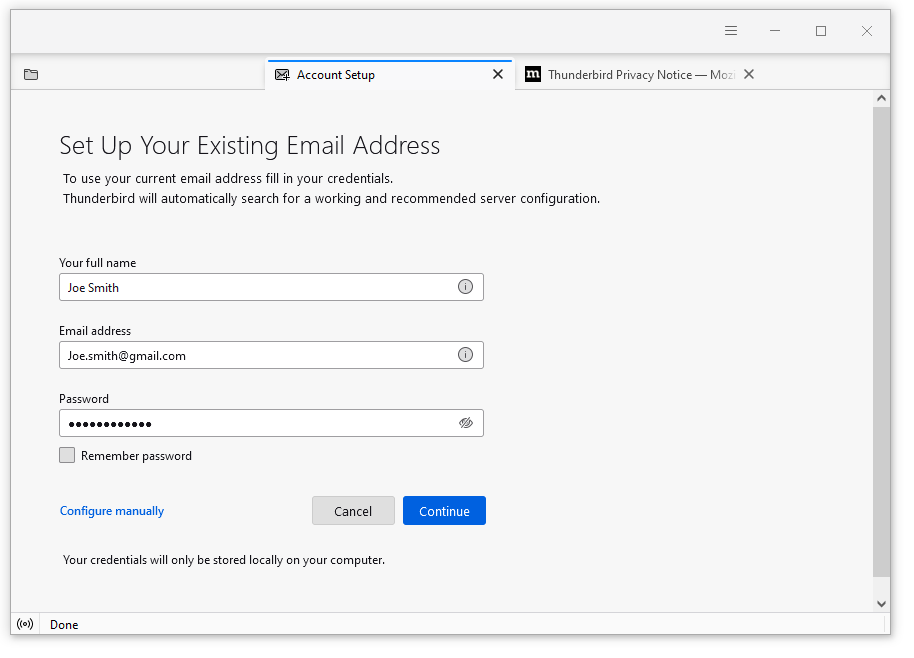
Open Thunderbird. The Account Setup screen appears. (If it doesn’t, click the menu button ≡ > New Account > Email.)
-
Enter your name, your full email address, and your email password.
-
Click Continue. Thunderbird finds your mail server settings automatically.
-
Choose IMAP (not POP3). IMAP keeps your mail on the server so your phone and computer stay in sync.
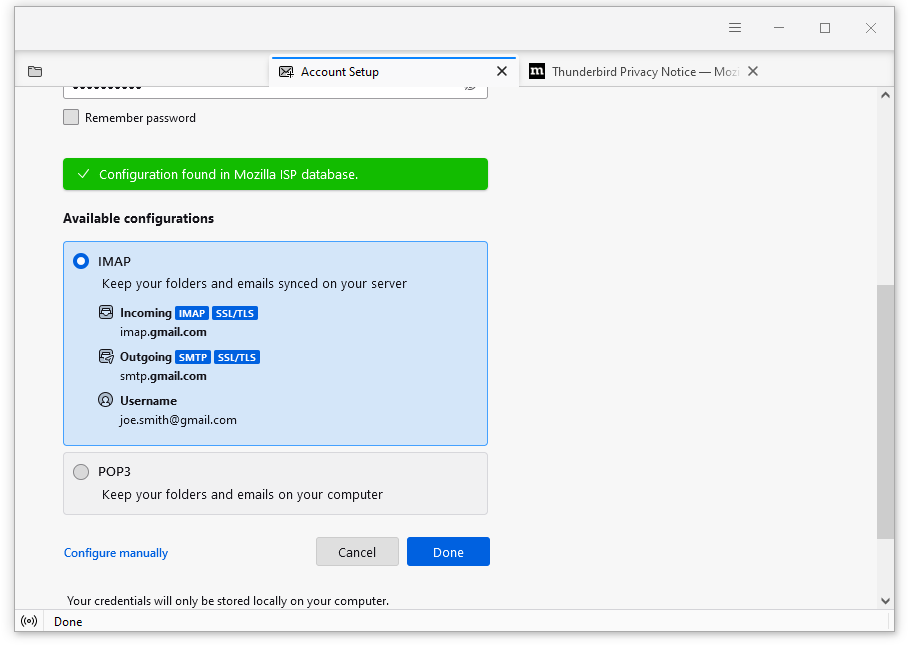
- Click Done. That’s it — your mail will start appearing.
If automatic setup doesn’t work
Click Configure manually on the Account Setup screen and enter:
- Incoming server (IMAP): mail.example.com, port 993, SSL/TLS
- Outgoing server (SMTP): mail.example.com, port 465, SSL/TLS
- Username: your full email address (for both incoming and outgoing)
Then click Re-test, and Done.
After setup: remove the Gmail alias
If you were using Gmail’s “Send mail as” before, remove it so old habits don’t recreate the problem:
-
Open Gmail on your computer and click the gear icon at the top right.
-
Click See all settings.
-
Go to the Accounts and Import tab.
-
In the Send mail as section, click delete next to your @yourdomain address.
From now on, send and reply from your mail app instead.
If something goes wrong
Certificate warning? If your mail app warns about a certificate or security exception, don’t click through it — the server name is probably typed wrong. Double-check it, and if the warning stays, contact me .
Wrong password? I can reset it for you, or you can change it yourself here .
Anything else, just drop me a message — happy to help.
Thunderbird screenshots from Mozilla Support , © Mozilla contributors, CC BY-SA .