You can always change your password here .
Your mail server supports autodiscover, so in most cases Outlook sets everything up for you — you only need your email address and password. Enter those and Outlook detects the rest. The manual server settings (steps 5–8) are optional, and only needed if automatic setup can’t find your account.
Requirements:
Your email address: mark@example.com
(You’ll need to get this created before accessing)
Your email password
(Optional — for manual setup only) Your “email access domain”, provided in your welcome email.
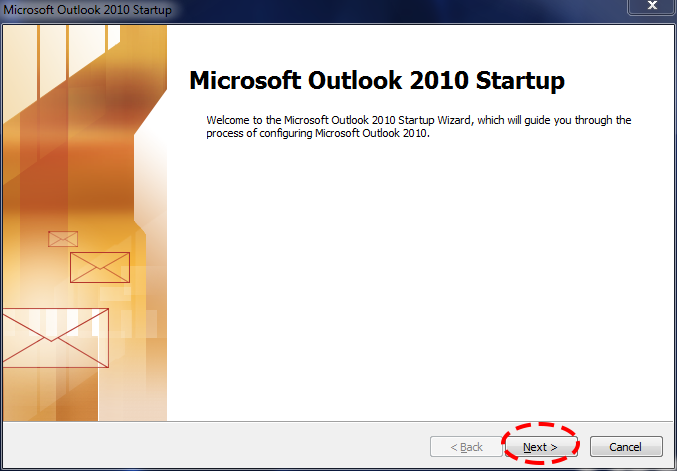
- If this is your first time starting Outlook 2010, you’ll see this screen. Click Next.
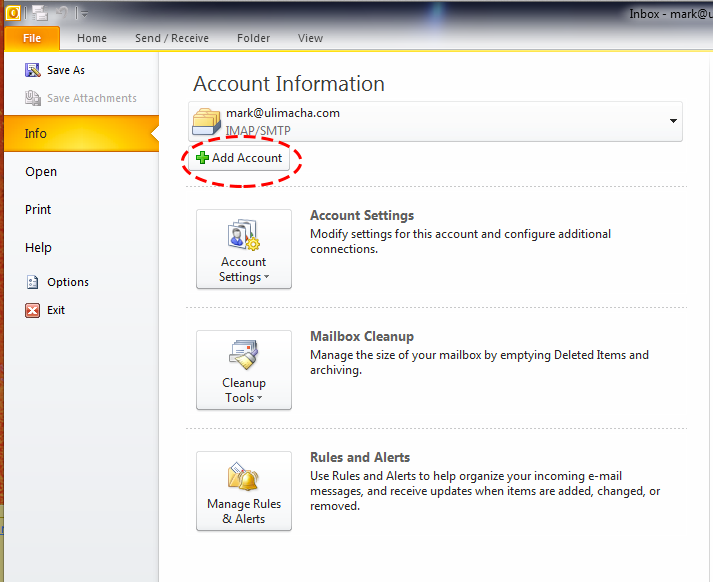
- Otherwise, click File, then Add Account.
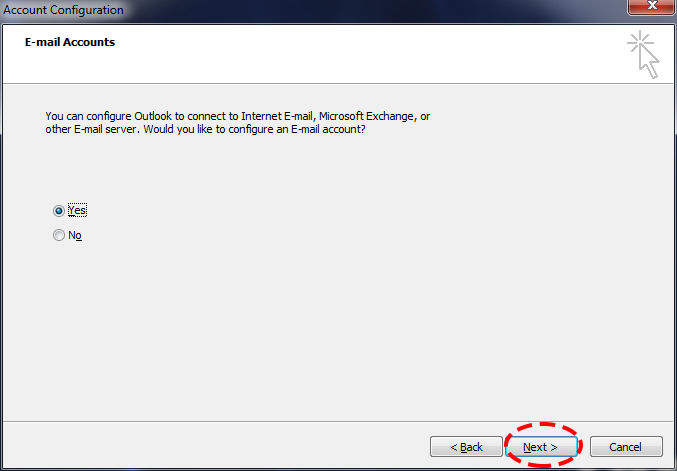
- When asked “Would you like to configure an E-mail account?”, choose Yes and click Next.
- On the Auto Account Setup screen, select E-mail Account and enter your Name, E-mail Address, and Password (twice). Click Next — thanks to autodiscover, Outlook finds your settings and finishes setup automatically. That’s it, you’re done.
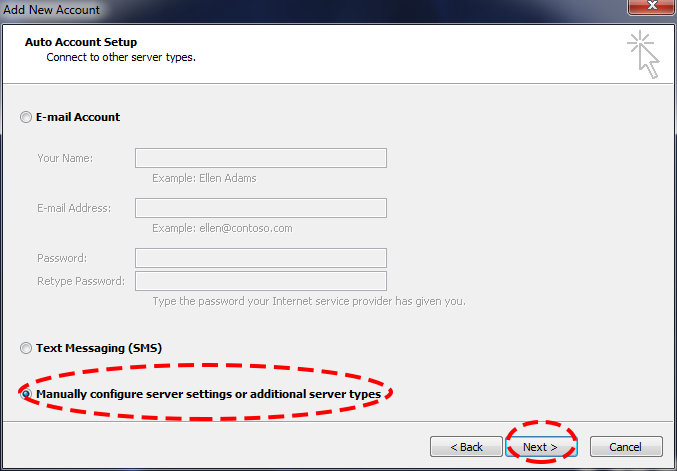
The circled option above, Manually configure server settings, is only for the optional steps below — use it if automatic setup can’t detect your account.
Optional: manual server settings
Only needed if automatic setup doesn’t work. On the Auto Account Setup screen, select Manually configure server settings or additional server types, click Next, then:
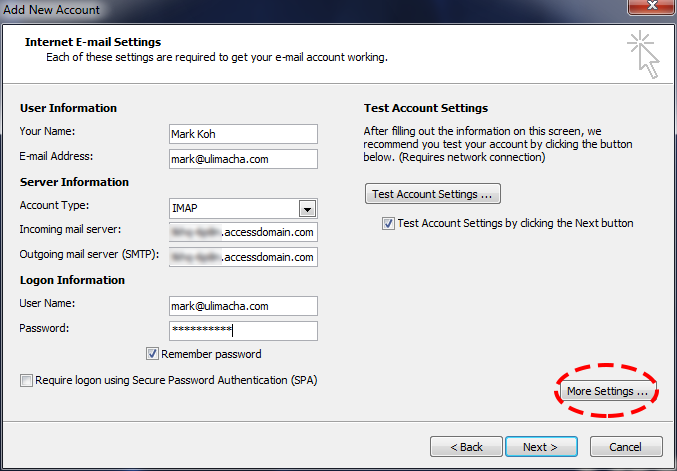
- Fill in your details. Both the Incoming mail server and Outgoing mail server (SMTP) are your Domain Email Access (refer to your email). Click More Settings… when everything is filled in.
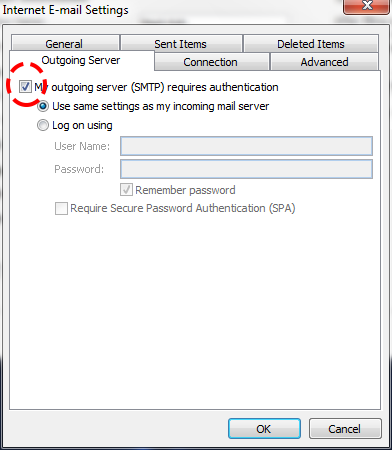
- Go to the Outgoing Server tab, check My outgoing server (SMTP) requires authentication, and click OK.
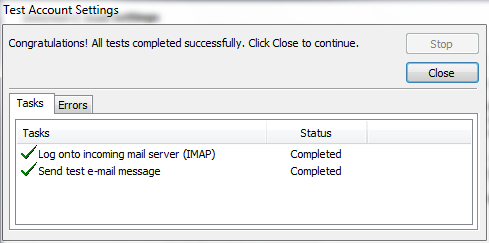
- Click Next to test the settings. If everything is correct, you’ll see the Completed status.
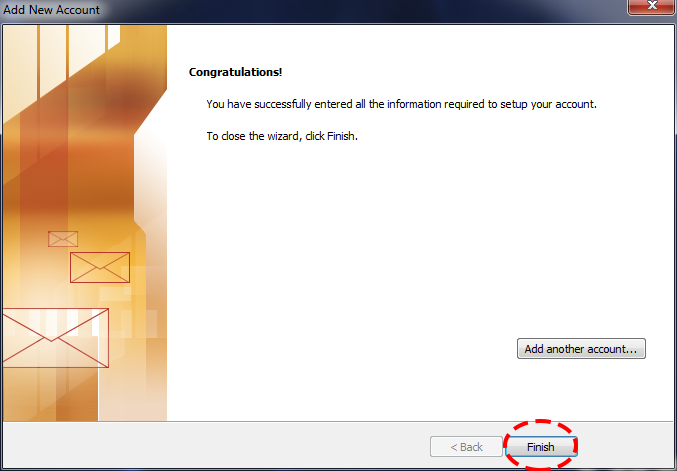
- Click Finish.