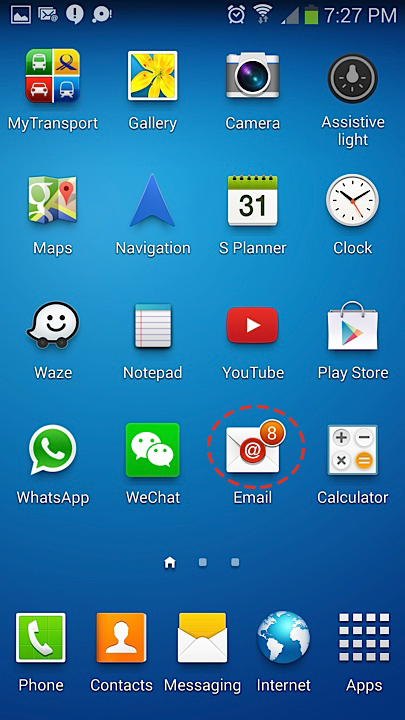
You can always change your password here .
Requirements:
Your email address: mark@example.com
(You’ll need to get this created before accessing)
Your email password
Quick settings
Enter your website address and the settings below will update to match.
| Server | Port | Security | |
|---|---|---|---|
| Incoming (IMAP) | mail.example.com | 993 | SSL/TLS |
| Outgoing (SMTP) | mail.example.com | 465 | SSL/TLS |
Username: your full email address (for both incoming and outgoing)
Password: your email password
(replace example.com with your own website address)
Step by step
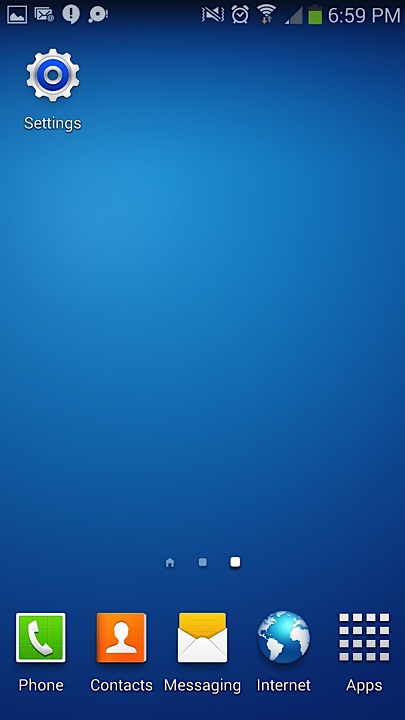
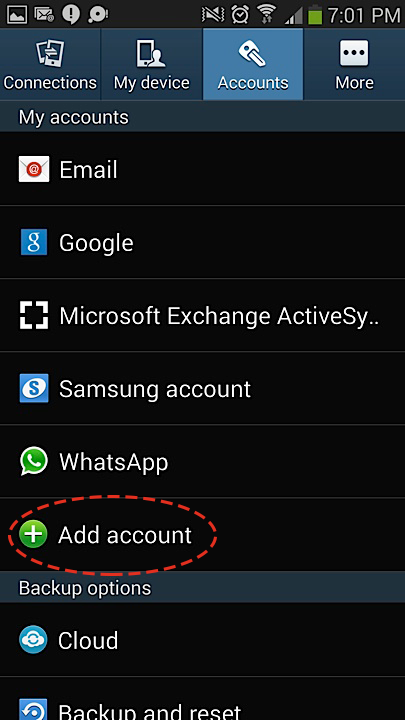
- Go to Add Account
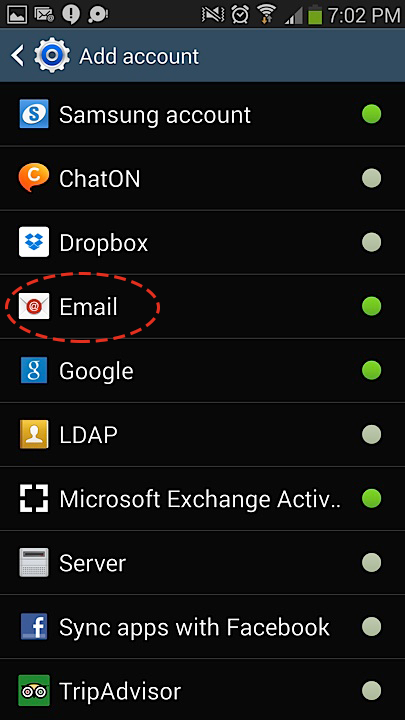
- Go to Email
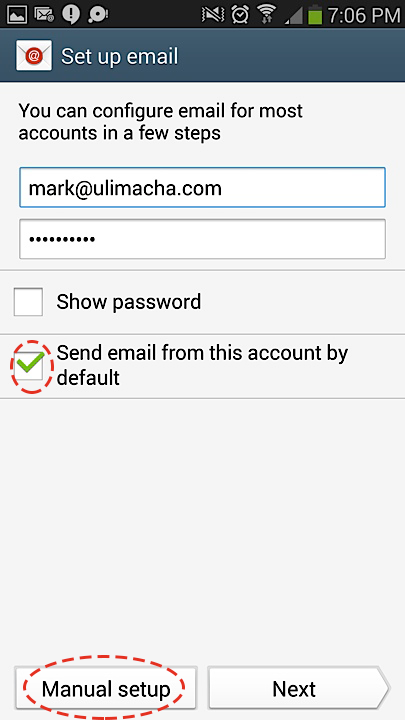
- Fill in your Email Address and Your Password. Check the box so that you’ll use this email as the main email.
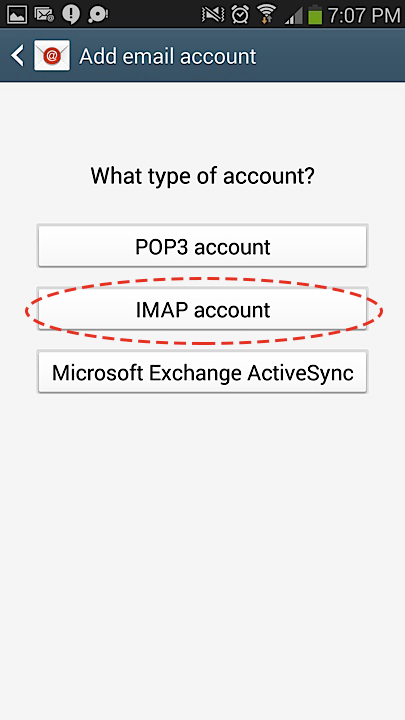
- Select IMAP account
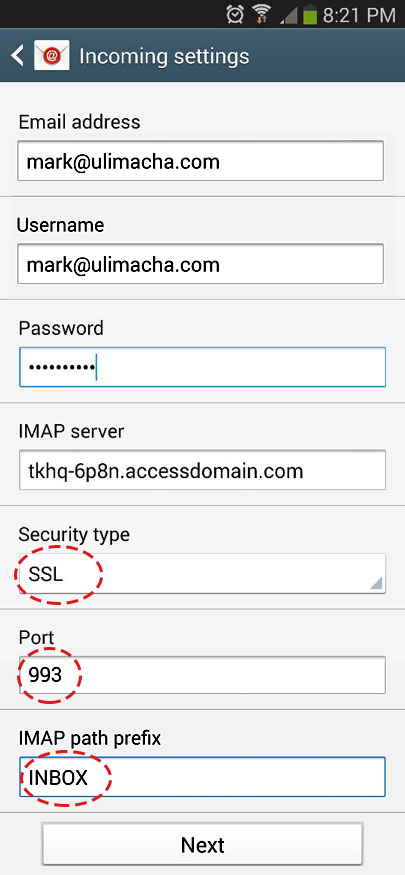
- Your Email Address and Username are the same thing. IMAP server is mail.example.com, port 993, security SSL/TLS.
- SMTP server is mail.example.com, port 465, security SSL/TLS. Type in your own Username (your full email address) and Password.
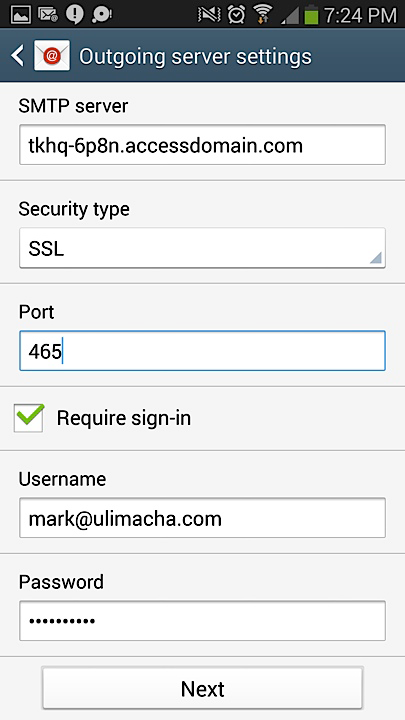
- Leave the default setting alone if you’re not sure.
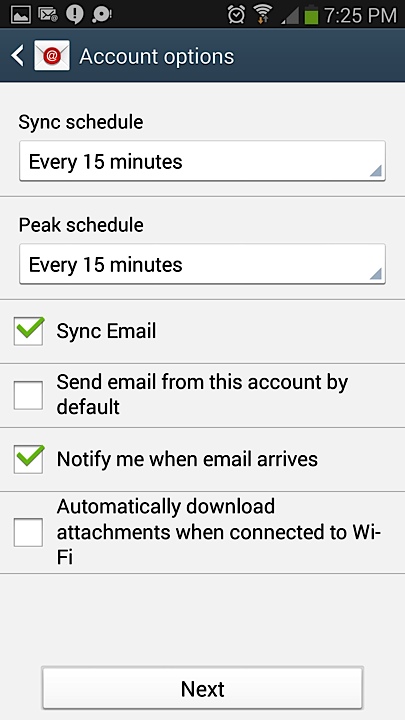
- Fill in your own information.
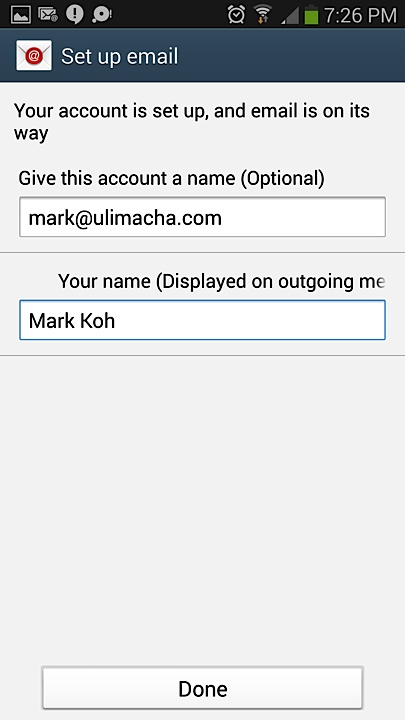 Now you can check your mail on your Email App.